
Last reviewed: October 2026
Video email marketing means using video inside your email program, either as a clickable thumbnail or animated GIF that opens the video on a web page, or as a short personal recording sent one to one. True embedded playback still fails in most inboxes, including Gmail, so the reliable method in 2026 is a linked preview image plus a clear call to action.
This guide covers what actually works in each email client, the four ways to put video in email, when personalized video email beats a plain-text follow-up, and how a professional-service firm can use it for proposals, onboarding and nurture without hurting deliverability. Every support claim below links to the test data behind it.
What is video email marketing?
Video email marketing is any email that uses video to carry the message: a campaign newsletter that links to a product demo, a nurture email with a two-minute explainer, or a sales rep’s personal recording. The email itself usually holds a preview image or GIF, and the play happens on a landing page or video host.
It helps to separate two very different jobs, because the tools, metrics and tone differ:
- One-to-many video in email. Marketing sends the same video to a list: webinar replays, case-study walkthroughs, service explainers. You send it through your email service provider (ESP) and measure clicks, plays and conversions.
- One-to-one personalized video email. A person records a short video for one recipient, often screen-sharing the prospect’s website or proposal. Loom, Vidyard and BombBomb handle recording, hosting and view alerts. You measure replies and meetings.
Most service firms get more value from the second job first. If you want the broader numbers on video adoption before you commit, our roundup of video marketing statistics collects the current survey data.
Can you embed a video in an email?
Technically yes, practically rarely. The HTML5 <video> element has about 24% estimated support across the email clients tracked by Can I Email, and Gmail, Yahoo, AOL and Outlook.com do not play it. Unless your list is almost entirely Apple Mail, plan for a linked thumbnail or GIF instead of real playback.
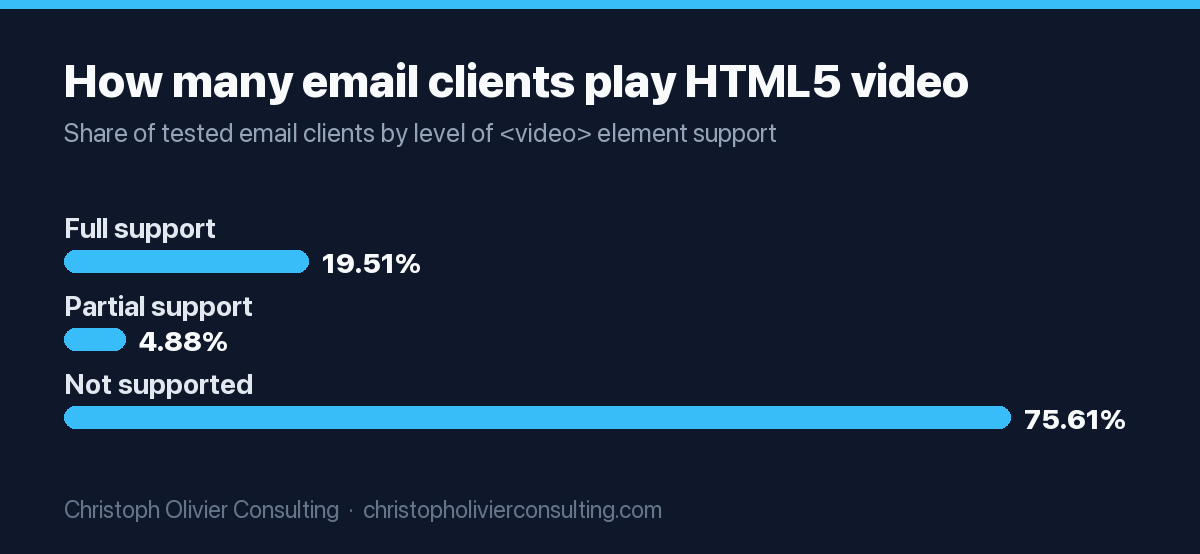
Can I Email’s HTML5 video test scores the element at 19.51% full support and 4.88% partial support. Gmail replaces video tags with other markup across its apps, Yahoo and AOL strip the tags and show your fallback content, and Outlook.com and Outlook mobile block playback through their Content Security Policy. Autoplay is not supported in several clients that otherwise accept the tag.
One honest caveat: Can I Email’s video test was last run in September 2019. Client behavior can shift, so test your own build in a rendering tool before any send. The Email on Acid HTML5 video guide (last updated 2021) reaches the same conclusion: Apple Mail and Outlook for Mac can play video, while Gmail, Outlook.com, Yahoo and most mobile apps cannot.
Video in email support by client: the 2026 table
Here is the practical answer by inbox. Animated GIFs display almost everywhere, while true HTML5 video only plays in Apple Mail and a few smaller clients. Because Apple and Gmail together account for close to 90% of tracked opens, your fallback has to look great in Gmail, which never plays embedded video.
| Email client | HTML5 video plays in the email? | Animated GIF? | What the recipient sees with a video tag |
|---|---|---|---|
| Apple Mail (macOS, iOS) | Partial: needs the controls attribute, no autoplay | Yes | A playable video with controls |
| Gmail (web, iOS, Android) | No | Yes | Video tags replaced; your fallback image if you built one |
| Outlook for Windows (2007 to 2019) | No | No: shows the first frame only | Fallback content |
| Outlook with Office 365 accounts | No | Plays 3 times, then shows a replay button | Fallback content |
| Outlook for Mac (16.80+) | Partial: right-click to play | Yes | A video that needs a right-click |
| Outlook.com and Outlook mobile | No: blocked by Content Security Policy | Yes | Fallback content |
| Yahoo Mail and AOL | No: tags stripped | Yes | Fallback content |
| Samsung Email | Partial: needs the controls attribute | Yes | A playable video with controls |
| Thunderbird | No (per Can I Email) | Yes | Fallback content |
Sources: Can I Email, HTML5 video (tested 2019) and Can I Email, animated GIF (tested 2020 to 2022, 97.62% full support).
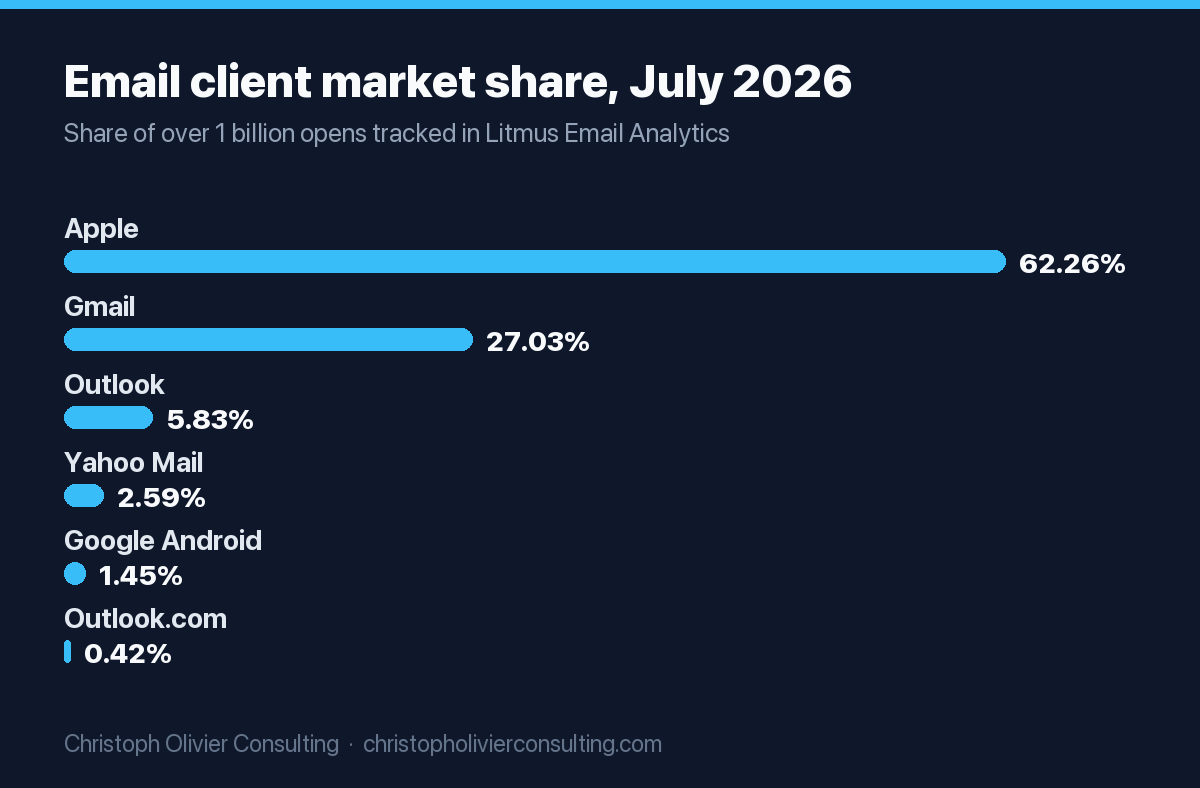
Now weigh that against where your readers open email. Litmus’s July 2026 email client market share report, built from over 1 billion tracked opens, puts Apple at 62.26%, Gmail at 27.03% and Outlook at 5.83%. Litmus notes that roughly 55% to 60% of opens are affected by Apple Mail Privacy Protection, which inflates Apple’s share, so treat it as directional. Your own ESP reports show your real mix.
How to put video in email: 4 methods compared
There are four practical ways to add video in email: a static thumbnail with a play button, an animated GIF preview, HTML5 video with a fallback image, and your ESP’s or video tool’s built-in video block. All but HTML5 work by linking to a hosted video, which is why they render reliably everywhere.
| Method | Works in Gmail and Outlook? | Build effort | Best for | Main drawback |
|---|---|---|---|---|
| Static thumbnail with play button, linked to a landing page | Yes | Low | Newsletters, nurture emails, webinar replays | No motion in the inbox |
| Animated GIF preview, linked to the video | Yes (Outlook for Windows shows frame one) | Low to medium | Personal sales videos, launches, event recaps | File weight and a weak first frame in classic Outlook |
| HTML5 <video> with fallback image | No, fallback shows instead | High | Apple-heavy consumer lists | About 24% client support, heavy testing load |
| ESP video block or tool integration (HubSpot, Mailchimp, Loom, Vidyard) | Yes, because it inserts a linked preview | Low | Teams that want it inside existing workflows | Tied to that platform’s hosting and analytics |
For almost every service firm, the linked thumbnail or GIF wins. Here is the build process I recommend:
- Host the video where you can track it. Put it on a landing page on your own site (embedded from YouTube, Vimeo, Wistia or your video tool) so the click lands somewhere with a next step, not on a page full of other people’s recommended videos.
- Pick a strong frame. Choose a frame with a face or a clear visual of the outcome. For a GIF, make the first frame work on its own, since classic Outlook for Windows shows only that frame.
- Add a play button overlay. Bake the triangle into the image.
- Link the image and add a text CTA. Link the whole image and add a text link or button underneath, such as “Watch the 2-minute walkthrough”. Images are often blocked by default, so the text link carries the click when they are.
- Write descriptive alt text. Use something like “Video: how our onboarding works, 2 minutes” so the email still makes sense with images off.
- State the length. Put the runtime in the copy. People commit to a known two minutes more readily than to an unknown.
- Test. Preview in Gmail, Outlook and Apple Mail and confirm the landing page loads fast on mobile.
Vidyard’s official channel walks through the embedded-thumbnail approach for campaign emails in the video in this section.
If you still want HTML5 video for Apple Mail
Use a <video> element with the controls attribute, an MP4 (H.264) source and a poster image, plus a linked fallback image for clients that strip the tag. You are then maintaining two experiences and testing every send, so most B2B teams should skip it.
Personalized video email for sales: Loom vs Vidyard vs BombBomb
Personalized video email is a short recording made for one person, sent from your normal inbox, usually as an animated GIF thumbnail that links to a hosted watch page. Loom, Vidyard and BombBomb all do this. The right choice depends on whether you want a general recording tool, sales analytics, or relationship-focused video messaging.
| Tool | Free option | Published paid pricing (Oct 2026) | How it shows up in email | Good fit for |
|---|---|---|---|---|
| Loom | Starter: 25 videos per person, 5-minute recording limit | Business $18 per user per month (about $15 billed annually); Business + AI $24 (about $20 annually) | “Copy GIF Thumbnail” works in any client; Gmail link expansion needs the Chrome extension | Firms that also use video internally for SOPs and async updates |
| Vidyard | Free: 5 video recordings per month | Starter, Teams and Enterprise are quote-based | Video thumbnails in email and CRM, with viewer notifications and analytics on paid plans | Sales teams that live in a CRM and want view tracking by rep |
| BombBomb | Free trial, no card required | Core $36 to $42 per user per month; Core + Copilot $56 to $70 | Gmail and Outlook integrations plus Chrome and Edge extensions | Relationship-driven businesses with long follow-up cycles |
Prices are as published on each vendor’s pricing page in October 2026; confirm before you buy.
Loom’s own documentation explains the universal method. In Loom’s help article on embedding video into email, you open the video, choose Share, then Embed, click “Copy GIF Thumbnail” and paste it into your email. Loom notes this works across email clients and suggests waving at the start so the preview shows movement. Gmail link expansion is less reliable because it depends on the Loom Chrome extension.
Vendors often quote big reply-rate lifts for video prospecting. Treat those as vendor claims, not benchmarks. Relevance matters more: a video showing the prospect’s own website or proposal reads as personal, while a generic tour blasted to 500 people performs like any other template. Vidyard’s official channel covers how sales teams structure these videos.
Use cases for professional-service firms
For accounting, law, consulting, agency and home-service firms, the best video email use cases are moments where a human explanation shortens a decision: proposal follow-up, new-client onboarding, nurture for leads that are not ready yet, and post-project thank-yous that ask for a referral or review. These rarely need studio production.
- Proposal follow-up. Instead of “just checking in”, record 90 seconds walking through the proposal page by page. Point to scope, timeline and the one decision you need.
- Onboarding. Send a welcome video from the person who will actually do the work, then short “what happens next” videos at each milestone. These fit naturally into triggered emails fired when a contract is signed or a document is uploaded.
- Lead nurture. Turn your most-asked sales questions into two-minute answer videos and drop them into your email drip campaign sequence, one per email.
- Account-based outreach. For a short list of target accounts, record a screen-share of their current site or a public filing and explain one specific opportunity. Our guide to B2B email marketing covers how this fits a wider B2B program.
- Thank-you and referral ask. A short personal thank-you at project close, followed by a light request for a review or introduction.
If you need more campaign angles beyond video, our list of email marketing ideas pairs well with these use cases.
Production tips: making videos people actually watch
Good email video is short, specific and human. Aim for one message per video, put the payoff in the first ten seconds, show your face at least at the start, and end with one clear next step. Polished production matters far less than relevance, especially for one-to-one sales and client videos.
- Keep it short. Most personal videos work at 60 to 120 seconds.
- Open with the recipient, not yourself. “Hi Dana, I looked at your proposal questions” beats “Hi, I’m Christoph from…”.
- Sound first. Face a window and use a basic headset mic. Bad audio loses viewers faster than average video.
- Use screen share when it explains faster. Showing the actual document, report or website is usually more persuasive than talking to camera.
- Design the first frame or first second. It becomes your thumbnail or GIF. A wave, a smile, or the recipient’s logo on screen gives the preview a reason to be clicked.
Use this script template for a proposal follow-up video:
Template: 90-second proposal follow-up video
- 0 to 10 seconds, name and context: “Hi [Name], quick video on the proposal I sent on [day].”
- 10 to 40 seconds, their goal: “You told us the priority is [goal]. Here is where the proposal handles that.” (Screen-share the relevant section.)
- 40 to 70 seconds, the decision: “The main choice is between [option A] and [option B]. Here is the trade-off.”
- 70 to 90 seconds, one next step: “If it helps, reply with a time that works and we can settle scope in 15 minutes.”
Email copy: Subject “[Name], 90-second walkthrough of your proposal”. Body: one line of context, the linked GIF thumbnail, a text link to the video, your signature.
Accessibility: captions, alt text and transcripts
Accessible video email needs three things: captions on the video, descriptive alt text on the thumbnail or GIF, and a text summary in the email body. Captions for prerecorded video are a Level A requirement in WCAG, and they also help the many people who watch with sound off.
WCAG 2.2 Success Criterion 1.2.2 requires captions for all prerecorded audio content in synchronized media, at Level A, the baseline conformance level.
- Turn on auto-captions, then fix client names and jargon by hand.
- Write alt text that says what the video is and how long it runs, not “image” or “thumbnail”.
- Put the key point and the call to action in live text, so a screen reader user and an images-off reader get the message without the video.
- Offer a transcript on the landing page for longer explainers.
Deliverability and file size: what to avoid
Never attach a video file to a marketing email. Link to a hosted video instead, keep your HTML lean, and keep animated GIFs light. Large attachments get converted or bounced, heavy HTML gets clipped in Gmail, and complaints from irrelevant video blasts count against the spam-rate limits Gmail enforces.
- Attachments. Personal Gmail accounts have a 25 MB attachment limit. Anything larger is turned into a Google Drive link.
- Gmail clipping. Gmail clips emails whose HTML exceeds 102 KB and hides the rest behind a “View entire message” link, according to MxToolbox’s explanation of email clipping. Externally loaded images do not count, but the code calling them does. Keep templates lean so your CTA and footer stay visible.
- GIF weight. GIFs download when the email opens. Trim the clip to a few seconds, cut frames and dimensions, and check it on a phone.
- Spam complaints. Google’s email sender guidelines ask all senders to keep the spam rate reported in Postmaster Tools below 0.3%, authenticate with SPF or DKIM (bulk senders need SPF, DKIM and DMARC), and support one-click unsubscribe for marketing mail.
How to measure video email performance
Measure video email on what happens after the click, not on opens. Track click-through to the video, play rate on the landing page, average watch time, and the business outcome: replies, meetings booked or proposals signed. Open rates are unreliable because Apple Mail Privacy Protection affects a large share of opens.
| Metric | Where you get it | What it tells you | Use it for |
|---|---|---|---|
| Click-through rate on the thumbnail or GIF | Your ESP or sales inbox tool | Whether the preview and copy earned the click | Testing thumbnails, subject lines and copy |
| Play rate | Your video host or landing page analytics | Whether people who arrived actually pressed play | Fixing landing pages and autoplay settings |
| Average watch time or completion | Video host analytics (Loom, Vidyard, Wistia, YouTube) | Where attention drops off | Shortening scripts and moving the payoff earlier |
| Reply rate | Inbox or sales engagement tool | Whether one-to-one videos start conversations | Comparing video follow-ups with text follow-ups |
| Meetings booked or deals won | CRM | Business impact | Deciding whether video earns more time and budget |
Before you scale, split your next batch of proposal follow-ups between a personal video and a plain-text note, and compare replies and meetings over a month. Small samples are noisy, so look for a consistent direction.
Worked example: a 3-email video sequence for a service firm
Here is how a 10-person accounting or consulting firm could add video to an existing follow-up flow after a discovery call. It uses one personal video, one reusable explainer and a plain-text final touch, so it adds roughly 15 minutes of recording per prospect and nothing to your tech stack beyond a recording tool.
- Day 0, personal recap video. The partner who ran the call records a 90-second screen-share of the proposal using the template above. Email: three lines of text, GIF thumbnail, text link, runtime in the subject line.
- Day 3, reusable explainer. A pre-recorded two-minute video, “How our first 90 days work”, hosted on a landing page with a transcript and a booking link.
- Day 7, plain-text check-in. No video. One question about timing or scope, signed by the partner.
- Branch on behavior. If the prospect watched the Day 0 video but did not reply, the Day 3 email can reference “the walkthrough I sent”. If they did not click, resend it with a new subject line.
- Review monthly. Track clicks, watch time, replies and meetings in your CRM, and cut any video viewers abandon early.
Here is a pre-send checklist to run on every video email:
Checklist: before you send a video email
- Video hosted on a page you control, with one clear next step
- Thumbnail or GIF has a play button and a strong first frame
- Whole image linked, plus a text link or button under it
- Alt text describes the video and its length
- Runtime stated in the subject line or first sentence
- Captions on, names and jargon corrected
- Key message and CTA readable with images off
- No video attachments; GIF checked on mobile data
- Rendered in Gmail, Outlook and Apple Mail before send
- Tracking set up for clicks, plays, watch time and replies
Most firms can run one-to-one video email in-house with a recording tool and the script template above. Campaign video, landing pages, automation and measurement are where video email marketing services tend to pay off, because the work spans email, video, web and CRM. If you want a second set of eyes on where video fits in your email program, you can book a consultation and we can map it against your current funnel.
Frequently asked questions
What is video email marketing?
Video email marketing is using video inside your email program, either as a linked thumbnail or animated GIF that opens a hosted video, or as a short personal recording sent to one person. Because most inboxes cannot play video inside the message, the email usually carries a preview and the viewing happens on a landing page or video host.
Can you embed a video directly in an email?
Only in a few clients. Can I Email estimates about 24% support for the HTML5 video element, with Apple Mail and Samsung Email playing it when the controls attribute is present. Gmail, Yahoo, AOL and Outlook.com do not play embedded video, so most senders use a linked thumbnail or animated GIF with a fallback text link.
How do I add a video to a Gmail or Outlook email?
Host the video on YouTube, Vimeo, Wistia, your video tool or a landing page, then insert a thumbnail image or animated GIF with a play button and link it to the video. Add a text link underneath and descriptive alt text. Tools like Loom offer a Copy GIF Thumbnail option that pastes a linked preview into any email client.
Does email video marketing hurt deliverability?
Linked video previews do not cause problems by themselves. Risks come from attaching video files, very heavy HTML that Gmail clips above about 102 KB, oversized GIFs and complaints from irrelevant sends. Google asks senders to keep reported spam rates below 0.3% and to authenticate their domain, so list quality still matters more than format.
What is a personalized video email?
A personalized video email is a short recording made for one recipient, often a screen-share of their website, proposal or account, sent from your normal inbox as a linked GIF thumbnail. Loom, Vidyard and BombBomb are common tools. It works best for proposal follow-ups, onboarding and account-based outreach where a human explanation speeds up a decision.
How long should a video in an email be?
For one-to-one sales and client videos, 60 to 120 seconds is a practical target: one message, the payoff in the first ten seconds and one clear next step. Explainers for campaigns can run longer if the topic earns it. State the runtime in the subject line or first sentence so recipients know the time commitment.
How do you measure video in email performance?
Track click-through on the thumbnail, play rate on the landing page, average watch time, and business outcomes such as replies, meetings booked and deals won. Avoid judging by open rate, since Litmus reports Apple Mail Privacy Protection affects a large share of opens and inflates them.
More Funnels & Email guides
- How Does a Webinar Work: A Comprehensive Guide
- What Are Funnels? A Plain-English Guide to Marketing, Sales, and Product Funnels
- Welcome Email Sequence: The 5-Email Series You Can Copy
- Conversion Rate Benchmarks by Industry
- Instagram Marketing in 2026: Reels & Conversion
- Funnel Marketing Agency: What They Do, When to Hire One, and How to Choose
- All Funnels & Email guides →